Czech Keyboard Layout: How to Type ě š č ř ž ý á í é
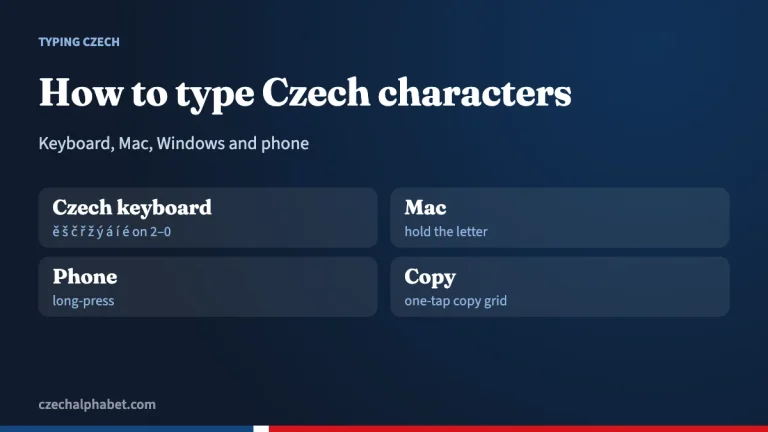
The Czech keyboard is a QWERTZ layout whose number row types ě š č ř ž ý á í é without Shift; Shift gives the digits. Two dead keys right of 0 add the čárka (´) and, with Shift, the háček (ˇ) for ď, ť, ň. Ú sits right of P and ů right of L.

The Czech keyboard is a QWERTZ layout that puts the most common accented letters straight onto the number row: press the 2 key and you get ě, press 5 and you get ř. Digits move to Shift. The rest of the Czech characters are typed with two dead keys, one for the čárka (´) and one for the háček (ˇ). If you only need a few letters now, use the copy buttons above.
The Czech keyboard layout at a glance
On the standard Czech layout in Windows, the letters Z and Y swap places compared with a US keyboard, as on German keyboards. The number row works like this:
| Key | Unshifted | With Shift |
|---|---|---|
| 1 | + | 1 |
| 2 | ě | 2 |
| 3 | š | 3 |
| 4 | č | 4 |
| 5 | ř | 5 |
| 6 | ž | 6 |
| 7 | ý | 7 |
| 8 | á | 8 |
| 9 | í | 9 |
| 0 | é | 0 |
The key right of 0 types =. The next key is a dead key: on its own it adds the čárka (´), and with Shift it adds the háček (ˇ). The letter ú has its own key right of P, and ů sits right of L. These positions come from Microsoft’s layout tables as published on kbdlayout.info.
Typing the letters that are not on the number row
A dead key types nothing by itself. It waits for the next letter and puts the mark on it.
- ď, ť, ň: press Shift + the dead key (ˇ), release, then d, t or n.
- ó and capital acute letters: press the dead key (´), then o, or Shift + A for Á.
- Capital Č, Ř, Š, Ž, Ě: press Shift + dead key (ˇ), then Shift + the letter. Or turn on Caps Lock and press the number-row key.
- Capital Ů: the Shift version of the ů key gives a quotation mark, so use Caps Lock + ů, or the kroužek dead key (Shift + the key left of 1) followed by Shift + U.
Tip: Caps Lock is the quickest way to get capitals with diacritics on a Czech keyboard. With Caps Lock on, the number-row keys type Ě Š Č Ř Ž Ý Á Í É.
Where the symbols went
Because accented letters took over the number row and some punctuation keys, several symbols live on AltGr (the right Alt key). Microsoft’s table for the layout lists these, among others:
| Symbol | Czech keyboard |
|---|---|
| @ | AltGr + V |
| € | AltGr + E |
| # | AltGr + X |
| & | AltGr + C |
| [ ] | AltGr + F, AltGr + G |
| { } | AltGr + B, AltGr + N |
| \ and | | AltGr + Q, AltGr + W |
| ~ | AltGr + 1 |
This is why many Czech programmers switch to a QWERTY variant or to the US layout for code and back to Czech for text.
How to add a Czech keyboard in Windows
- Open Settings > Time & language > Language & region.
- Add Czech as a language, or open the options of a language you already have and choose Add a keyboard.
- Pick Czech (QWERTZ) or Czech (QWERTY), which keeps Y and Z where English speakers expect them.
- Switch layouts with Windows key + Space, or from the language button on the taskbar.
Microsoft’s own steps are in its guide to managing keyboard layouts in Windows. Remember that the letters printed on a US keyboard will not match the Czech layout. A printed reference, or the table above, helps for the first week.
Czech keyboard on Mac, iPhone and Android
Mac: open System Settings > Keyboard > Input Sources, click Edit, then add Czech. macOS offers a QWERTZ “Czech” source and a “Czech – QWERTY” one. If you only need an occasional accent, you can stay on your normal layout and use press-and-hold or the ABC – Extended source, described in our guide to typing Czech characters.
iPhone and iPad: go to Settings > General > Keyboard > Keyboards > Add New Keyboard and choose Czech. On any layout, press and hold a letter to see its accented versions.
Android (Gboard): open Gboard settings, choose Languages > Add keyboard and pick Čeština. Long-press works here too, and the Czech keyboard can suggest the correct diacritics as you type.
Czech keyboard: QWERTZ or QWERTY?
Both layouts type the same accented letters on the number row. The difference is only Y and Z. QWERTZ is the traditional Czech standard you will find on most laptops sold in Czechia. QWERTY suits people who touch-type in English and do not want to relearn two keys. If you share a computer with Czech relatives, set both and switch as needed. The layout is quicker to learn than it looks, because the accented letters sit in a fixed order: the háček letters first (ě š č ř ž), then the long vowels (ý á í é).
The háček and čárka themselves are explained on our háček and Czech accents pages, and you can see every letter in the Czech alphabet chart.
Common mistakes
- Typing numbers on the Czech layout without Shift and getting ěščř instead of 2345.
- Pressing the dead key after the letter. The mark goes first, the letter second.
- Expecting Shift + ů to give Ů. It types a quotation mark; use Caps Lock.
- Typing e + háček for ě when the 2 key already does it.
- Leaving out diacritics entirely. Pás (“belt”) and pas (“passport”) are different words.
Frequently asked questions
How do I type numbers on a Czech keyboard?
Hold Shift and press the number-row keys. Without Shift, those keys type + ě š č ř ž ý á í é.
How do you type ď, ť and ň on a Czech keyboard?
Press Shift plus the dead key two keys right of 0 to get the háček, release, then type d, t or n.
What is the difference between Czech QWERTZ and QWERTY?
Only the Y and Z keys swap. Both layouts type the same accented letters.
Where is the @ sign on a Czech keyboard?
Press AltGr (right Alt) + V.
How do I add the Czech keyboard on Windows?
In Settings, open Time & language, then Language & region, add Czech or a Czech keyboard to an existing language, and switch with Windows key + Space.
Sources
- kbdlayout.info: Microsoft Czech keyboard layout (KBDCZ) tables
- Microsoft Support: Manage the language and keyboard/input layout settings in Windows
- Apple Support: Enter characters with accent marks on Mac